

Collection Management and Batch Execution
A Collection lets you group related test scenarios together to manage and run them in batches as a single Test Suite.
1. Key Use Cases for Collections
- Sequential End-to-End Batch Verification: Verify individual scenarios consecutively in order, such as Login -> Browse Products -> Checkout & Payment -> Order Cancellation.
- Concurrent Multi-Browser Parallel Execution: Run the same scenario set simultaneously across multiple browser environments—such as Chrome, Firefox, and Edge—to validate cross-browser compatibility.
2. How to Create a Collection
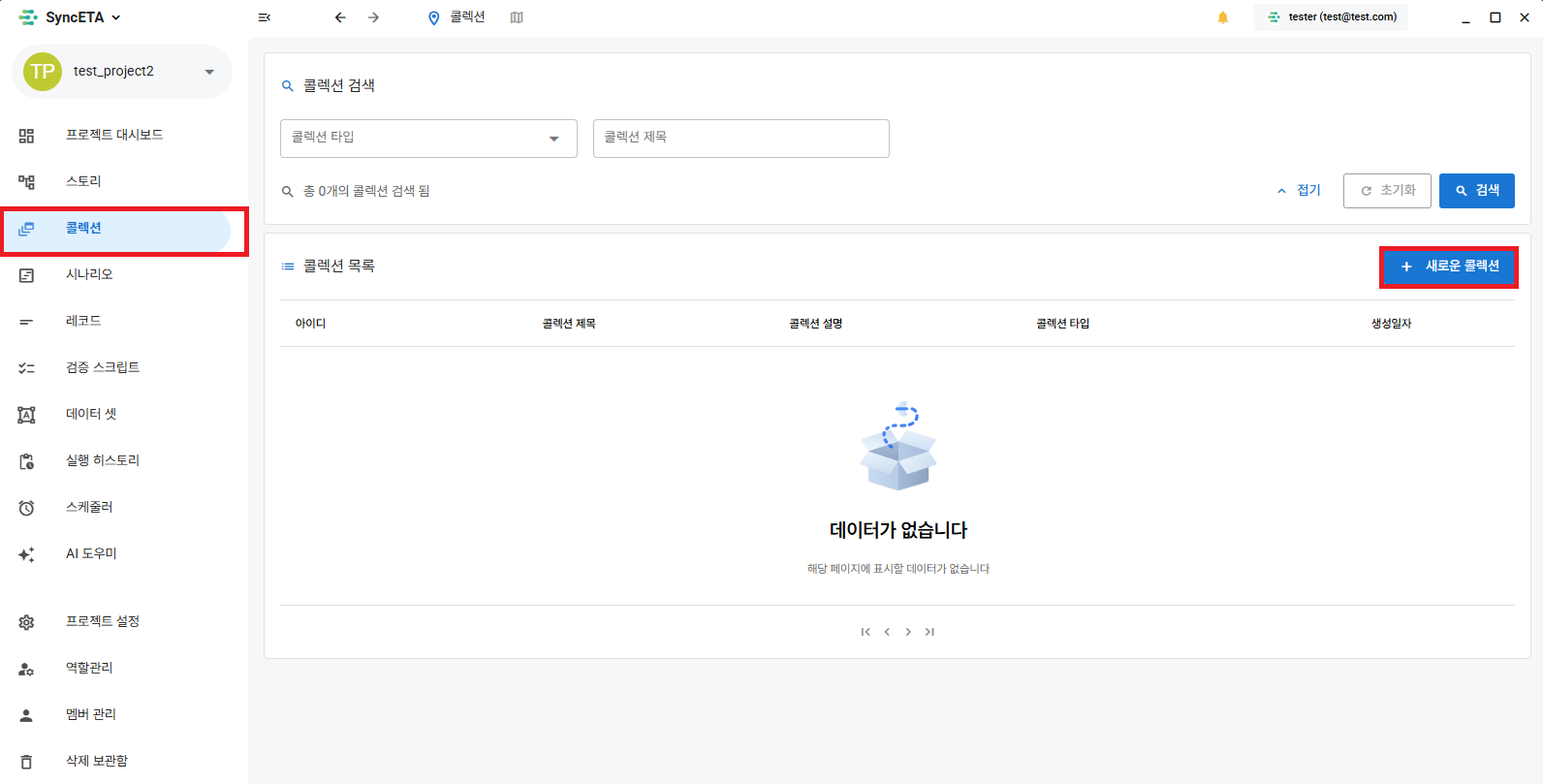
Step 1: Navigate to Collections and Create a New One
Select 'Collections' from the left navigation menu, then click the 'New Collection' button in the upper-right corner.
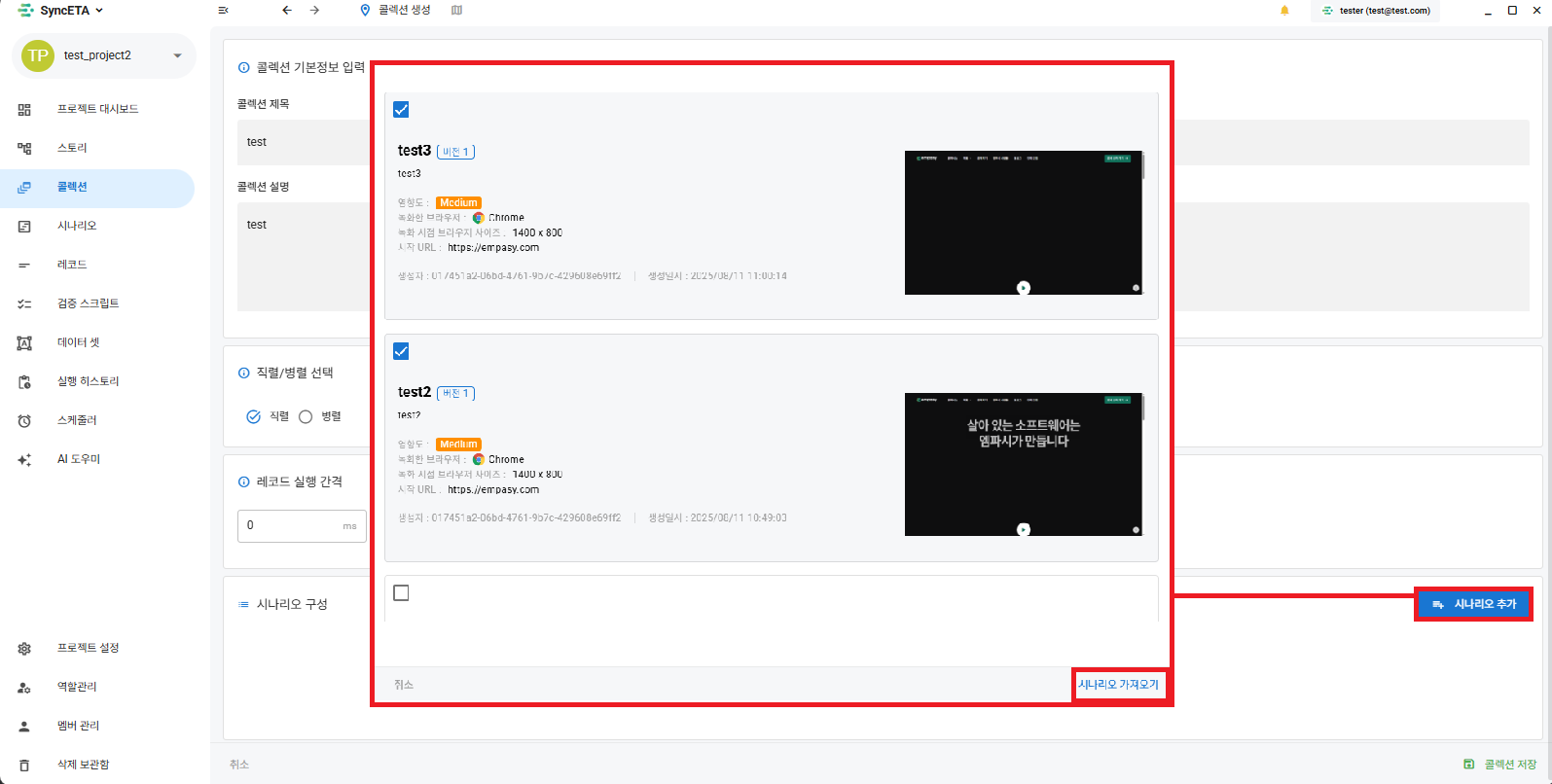
Step 2: Select Scenarios and Define Execution Order
Check the scenarios you want to include in the collection and drag and drop them to arrange their execution order.
3. Collection Execution Modes and Strategy Comparison
Depending on your testing goals and CI/CD pipeline stage, you can run a collection in either of two execution modes.
| Execution Mode | Behavior | Session & Cookie Sharing | Primary Use Cases |
|---|---|---|---|
| Sequential Mode | Executes scenarios one by one in the specified order (1 -> 2 -> 3) | Isolated or selectively preserved | Smoke tests and business flows with sequential data dependencies |
| Parallel Mode | Runs scenarios and multiple browsers (Chromium, Firefox, WebKit) concurrently across Playwright workers | Fully isolated per scenario | Large-scale nightly regression tests and cross-browser compatibility checks |
4. Collection Execution and Result Aggregation
When a collection runs, pass/fail status for each scenario is aggregated in real time. Once the entire collection finishes, a comprehensive summary report is recorded on the dashboard.