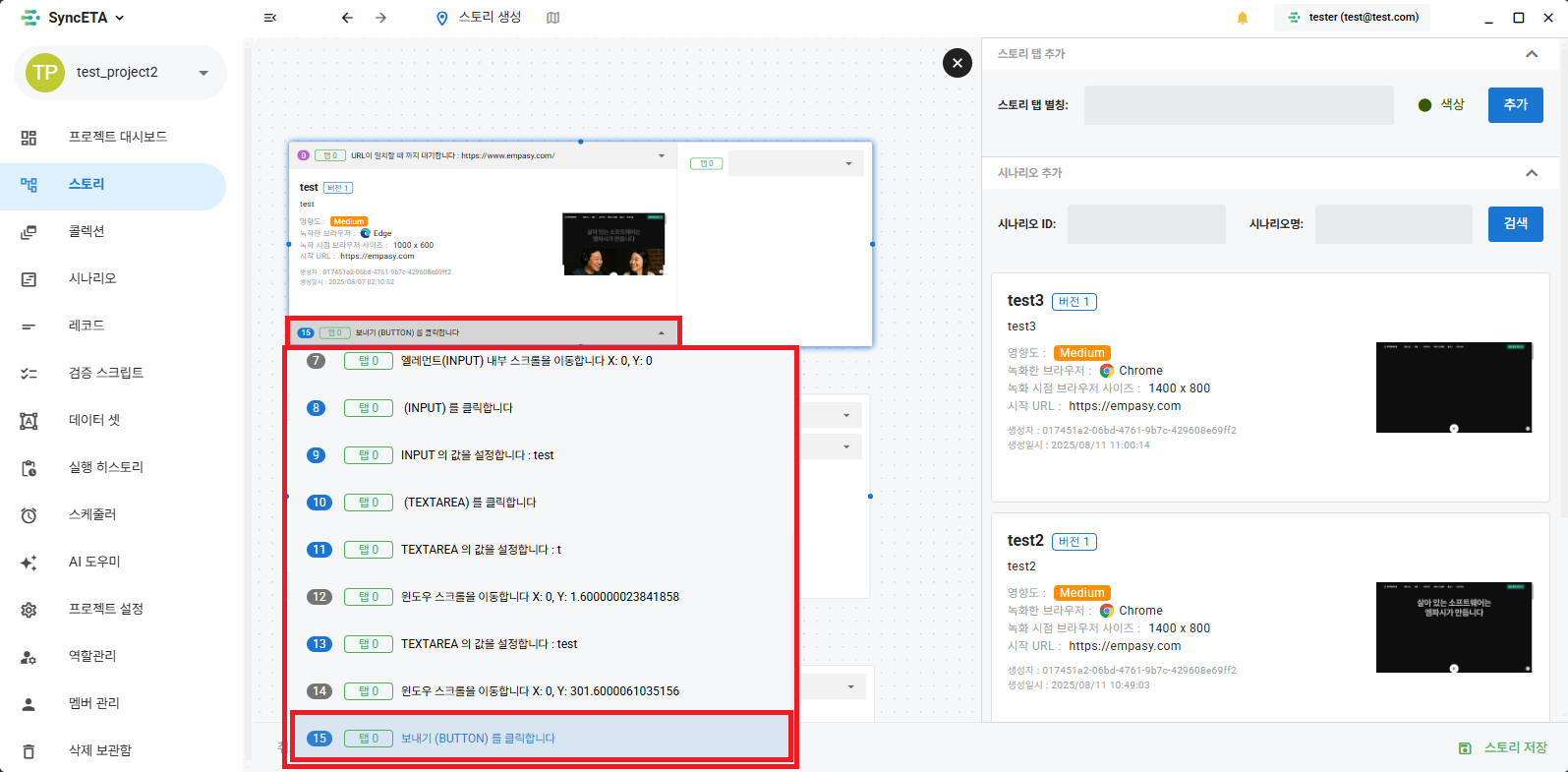
Story Workflow (Flowchart Integration)
A Story is a higher-level workflow orchestration tool that combines individual scenarios into a visual flowchart and executes them continuously within a single browser session or a multi-tab environment.
1. Key Features of a Story
- Single Browser Context Persistence: Chains multiple scenarios step by step while preserving session cookies and login authentication state.
- Multi-Tab Alias Control: Assigns aliases to individual tabs in complex business flows that open multiple tabs or popup windows, shifting focus accurately to continue testing.
- Step Range Selection (Start/End Record): Selectively connects only the required step range from an entire scenario.
2. Story Creation and Flowchart Composition Procedure
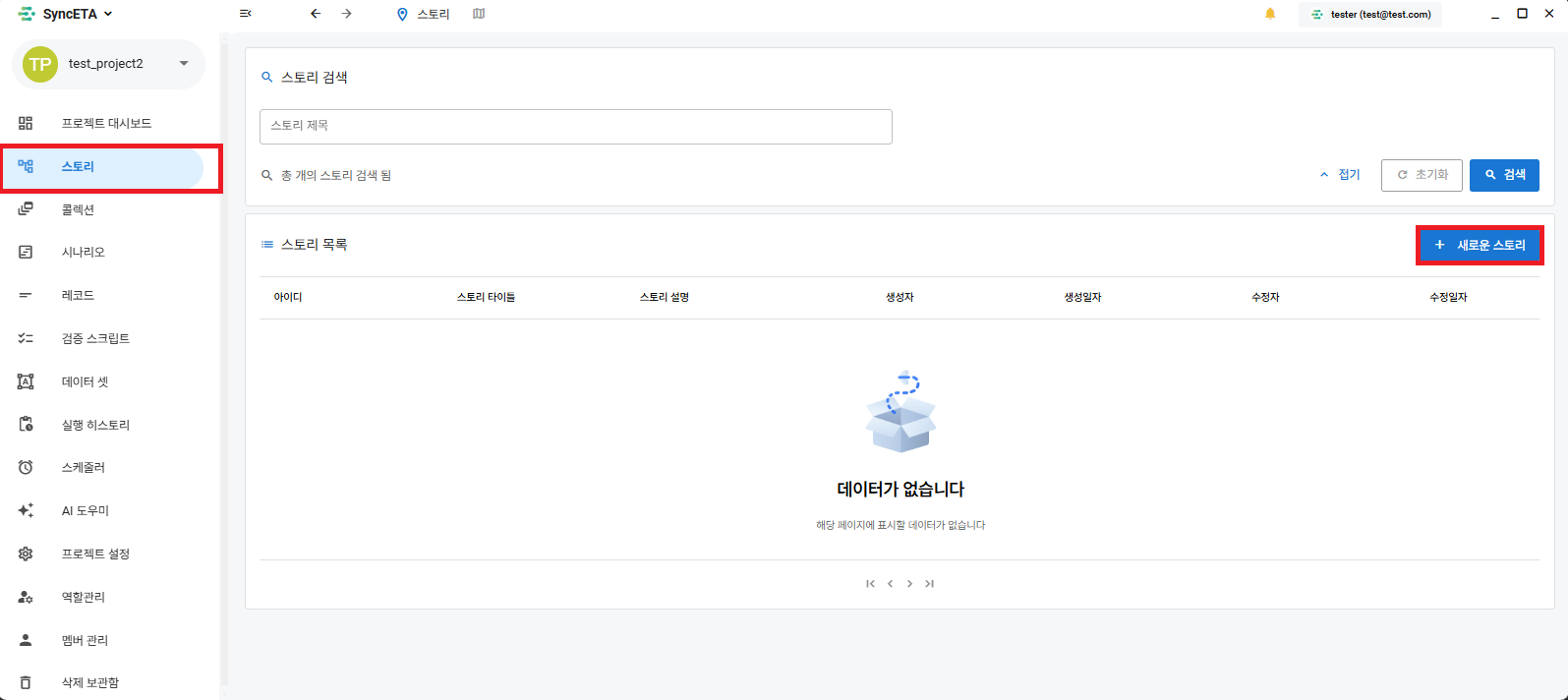
Step 1: Open the Story Menu
Click the Story menu in the left sidebar and open a new Story canvas.
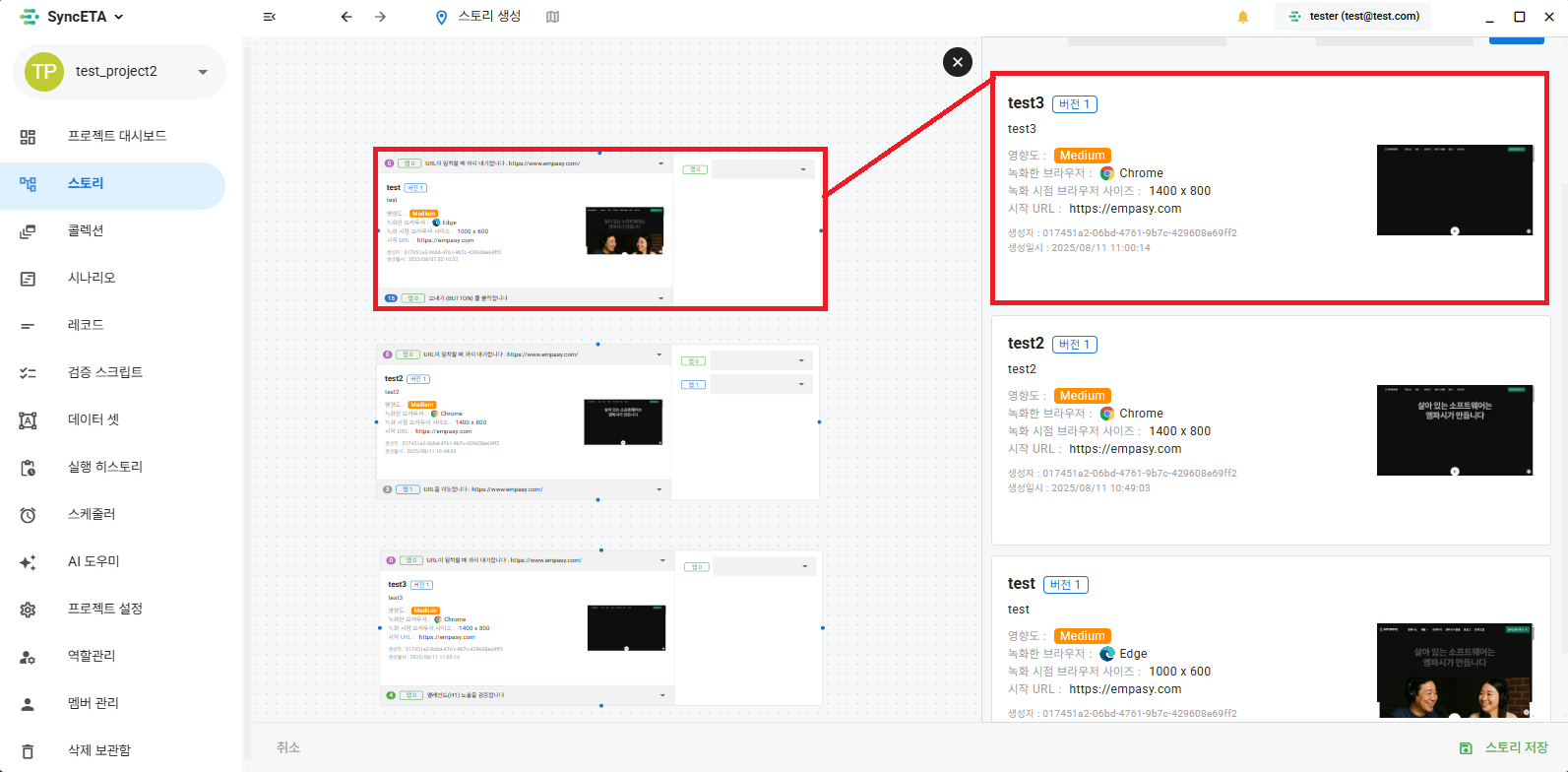
Step 2: Place Scenarios onto the Canvas
From the right-hand scenario drawer, drag and drop the scenario blocks you want to include in the Story onto the center canvas.
Step 3: Define and Apply Tab Aliases
When switching between tabs within the same browser is required, create unique tab aliases and map them to each scenario node.
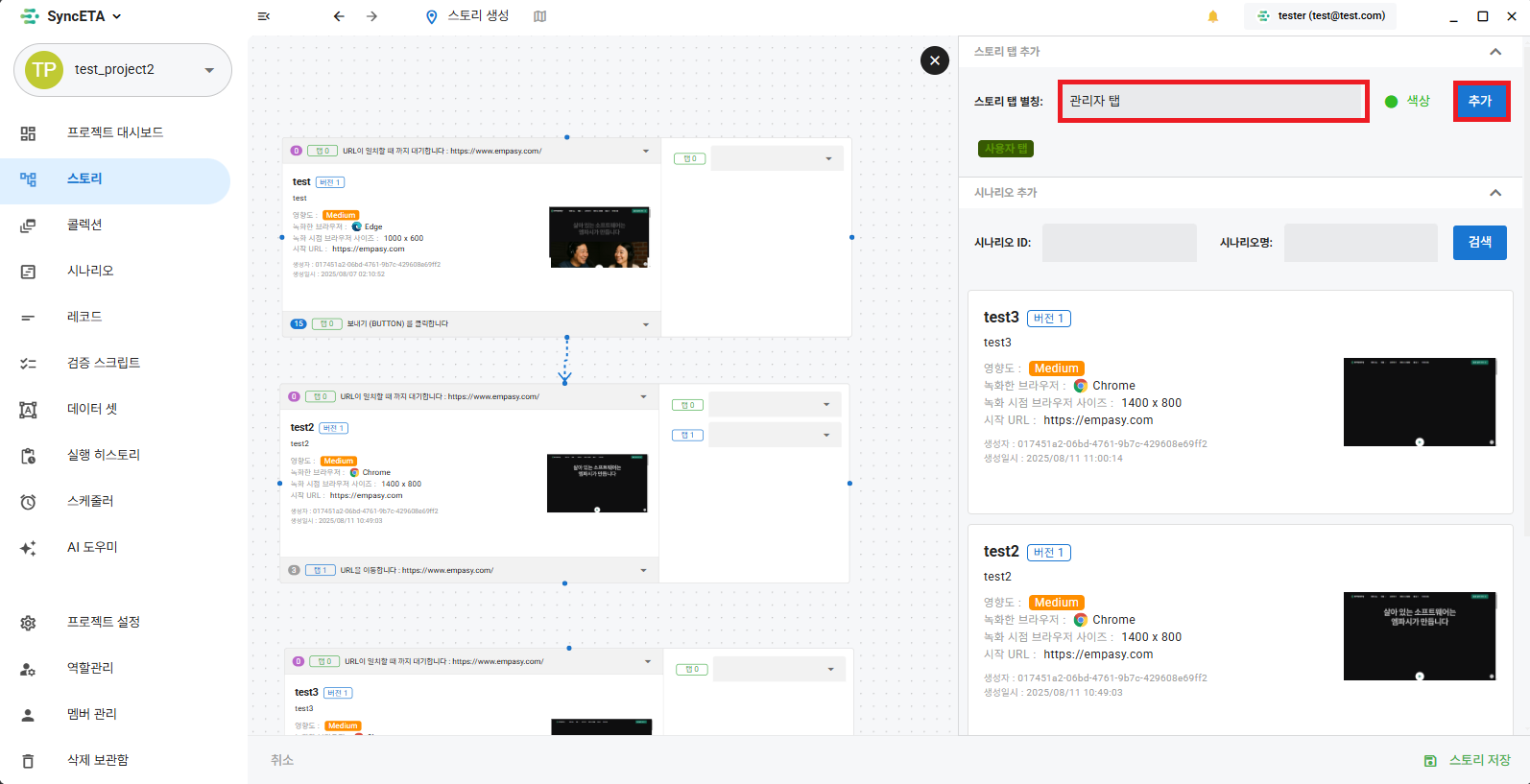
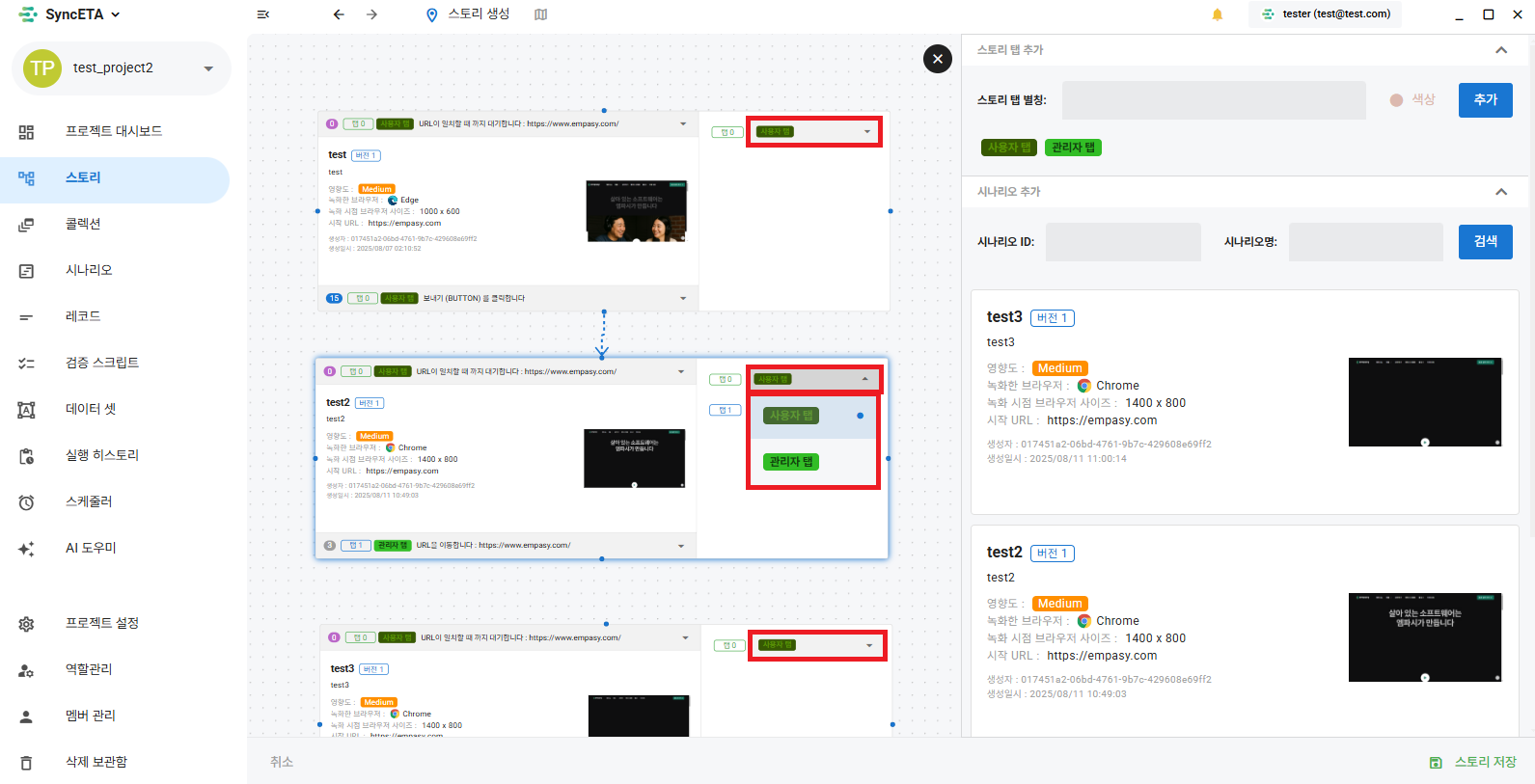
Step 4: Connect Scenario Nodes
Drag from the output port of a scenario block to the input port of the next scenario block to bind the execution order.
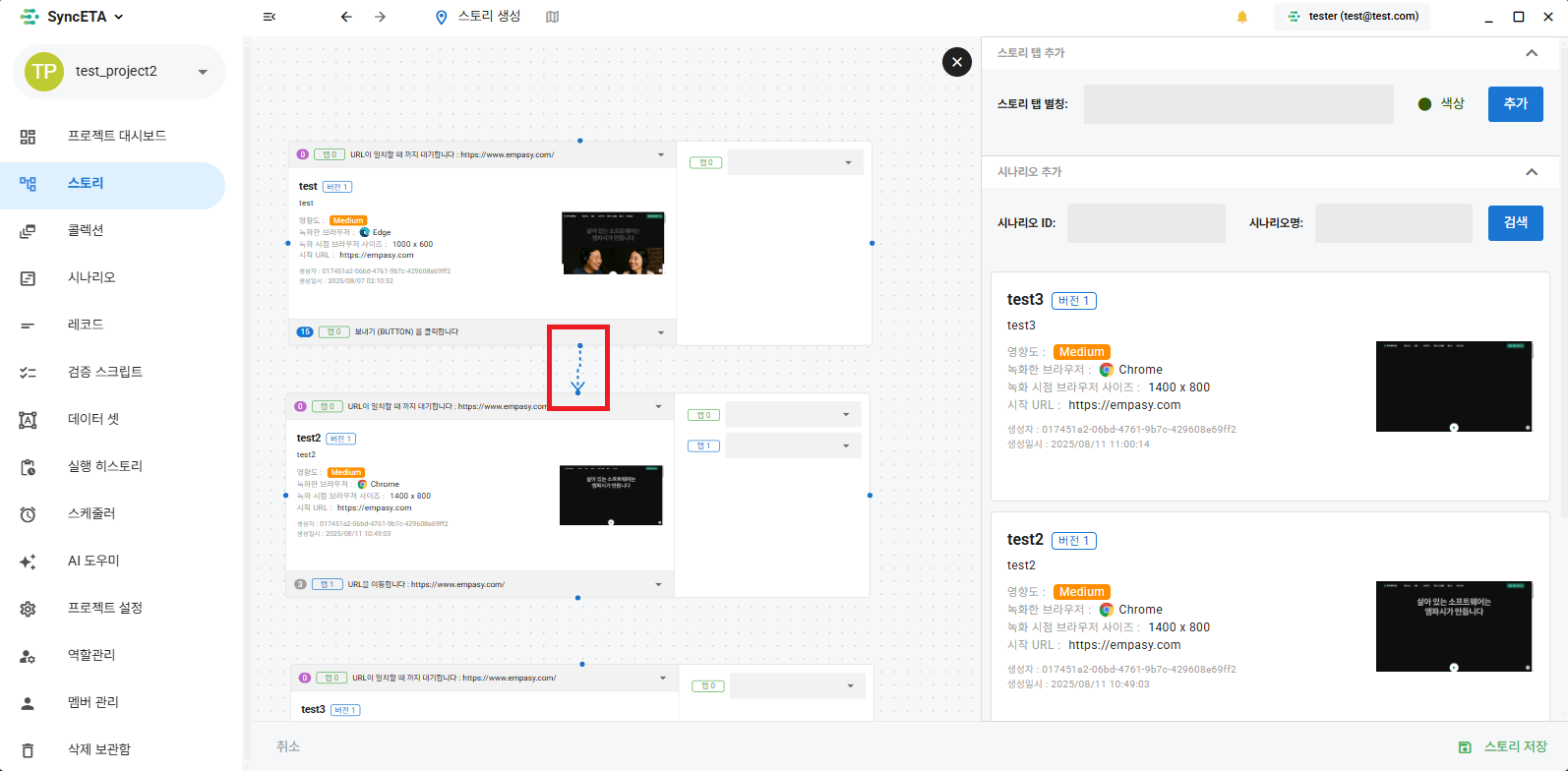
Step 5: Specify Start and End Record Ranges
Click each scenario block to fine-tune the start record and end record range to include in actual execution.