Account and Workspace Management
This guide explains how to manage your user account and personal preferences to access the SyncETA platform, create test projects, and collaborate with your team.
1. Sign Up and Email Verification
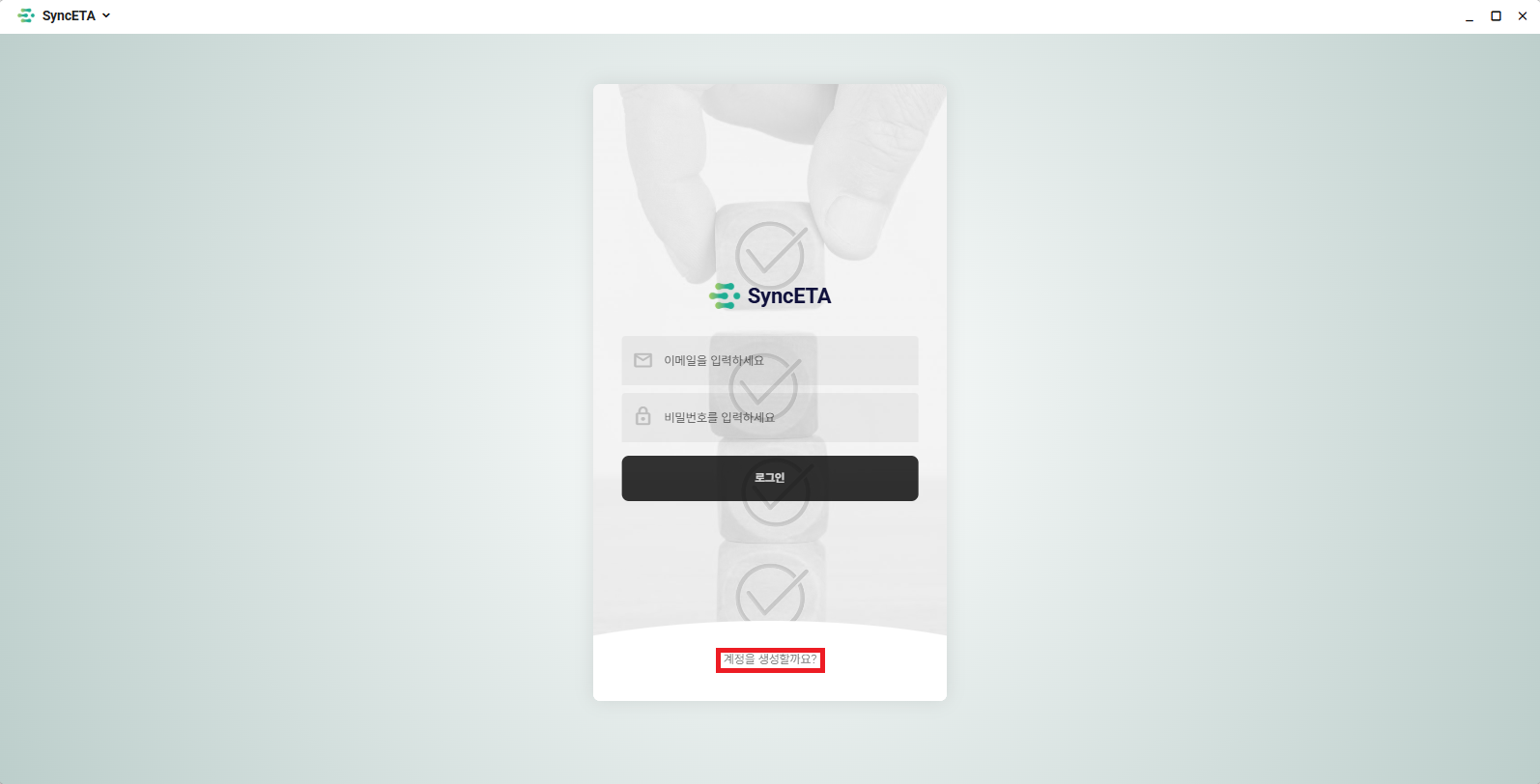
Step 1: Open the Account Creation Screen
Click the 'Create an account?' link at the bottom of the SyncETA login screen.
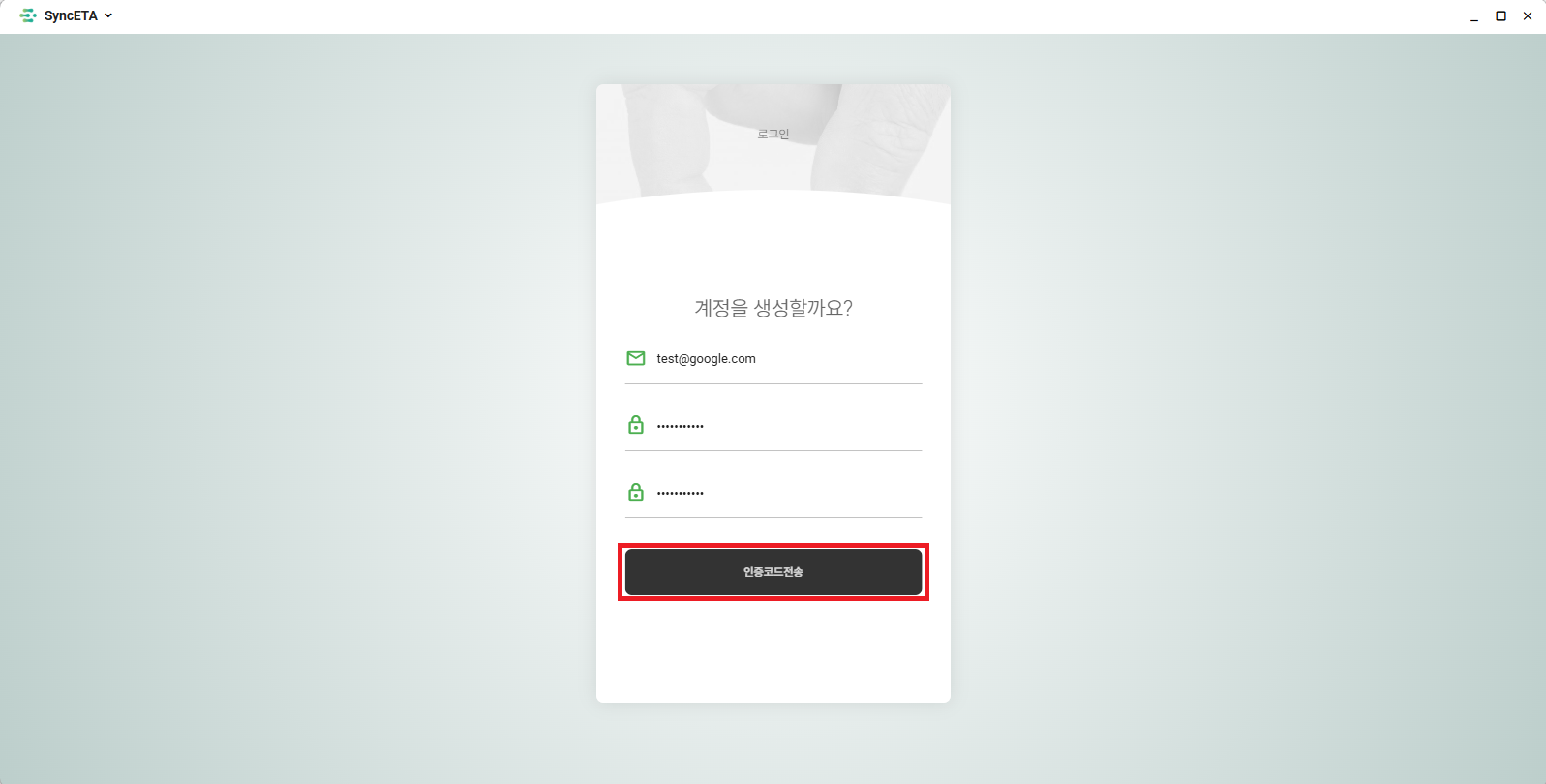
Step 2: Send Verification Code
Enter your email address and desired password, then click the 'Send Verification Code' button. The system sends a 6-digit one-time verification code to the email address you entered.
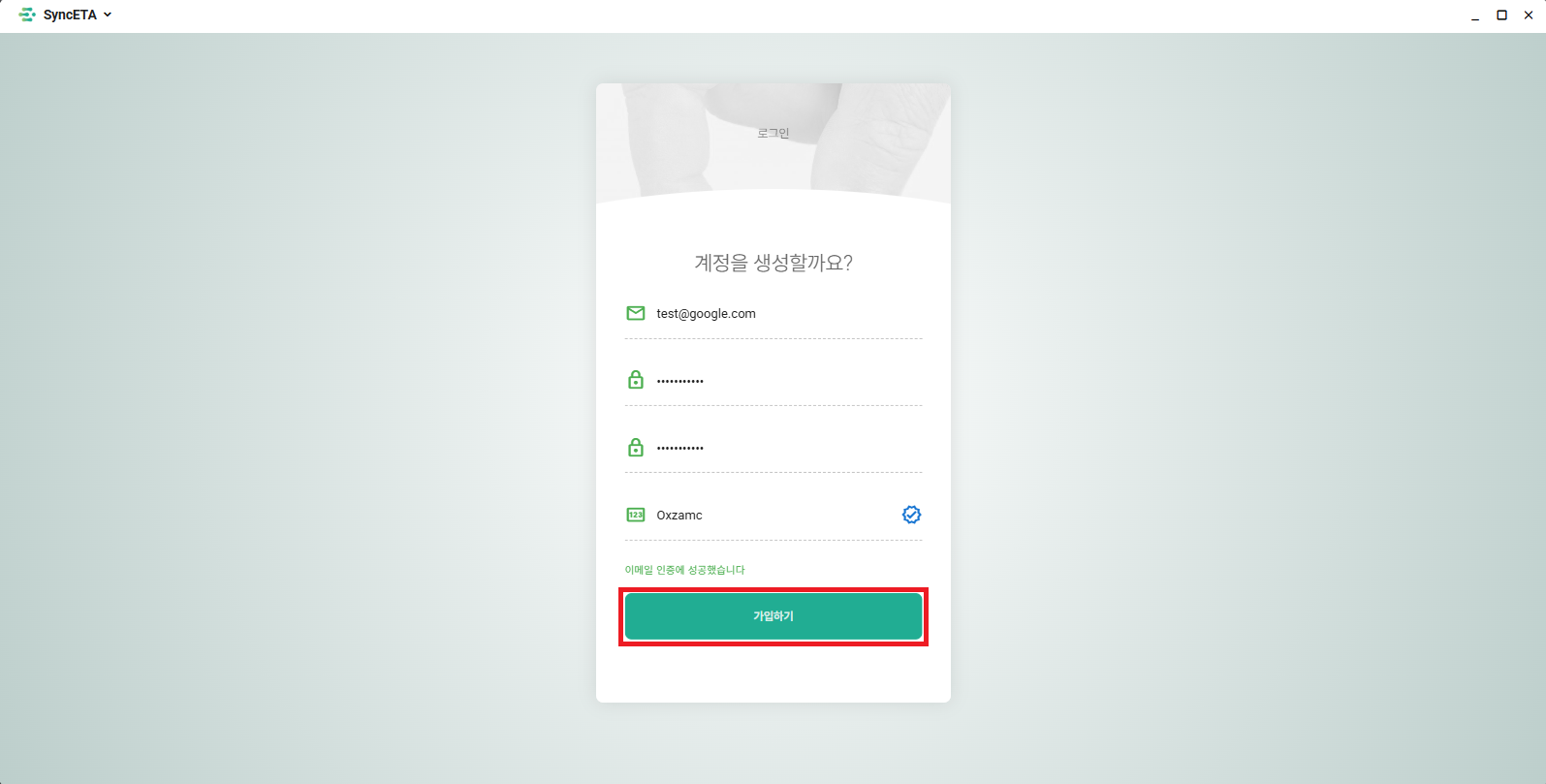
Step 3: Verify Code and Complete Registration
Enter the verification code from your email into the input field and click 'Sign Up'. Once verification succeeds, you are automatically redirected to the login screen.
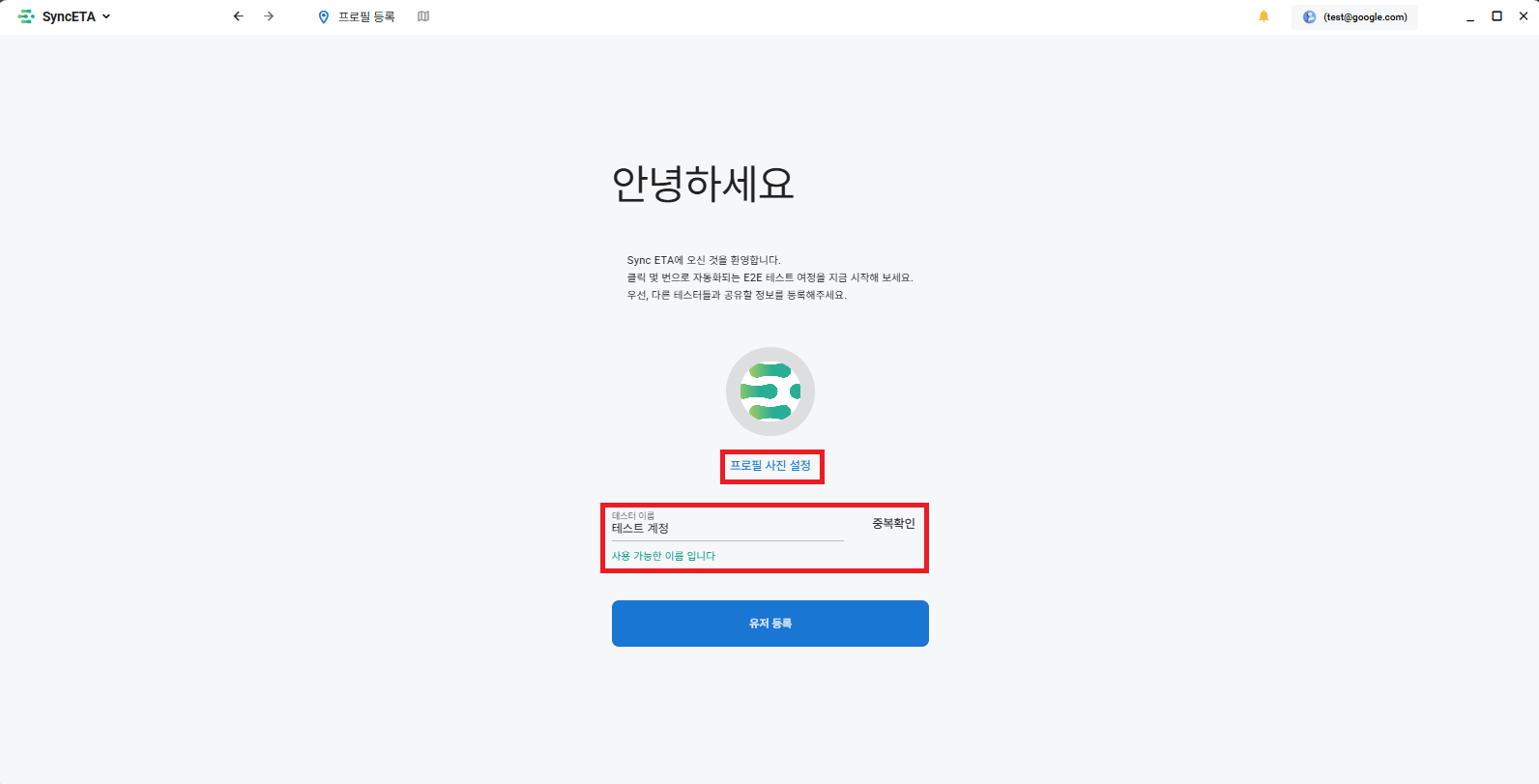
Step 4: Configure Your Initial Profile
On your first login, a setup screen appears where you can register your display name and profile image.
2. User Profile and Preferences
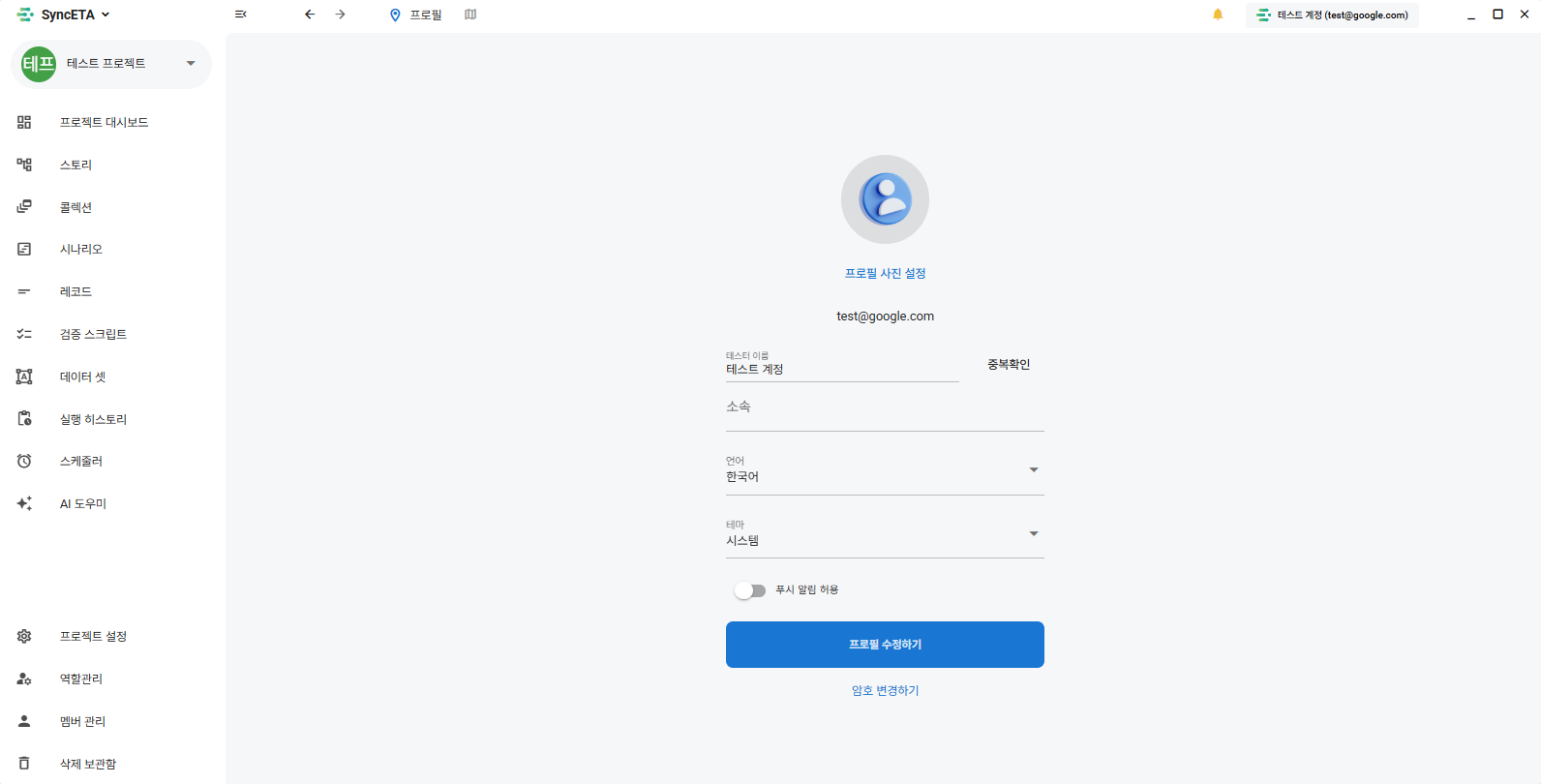
Click the 'My Profile' icon in the upper-right corner of the dashboard to customize your personal settings.
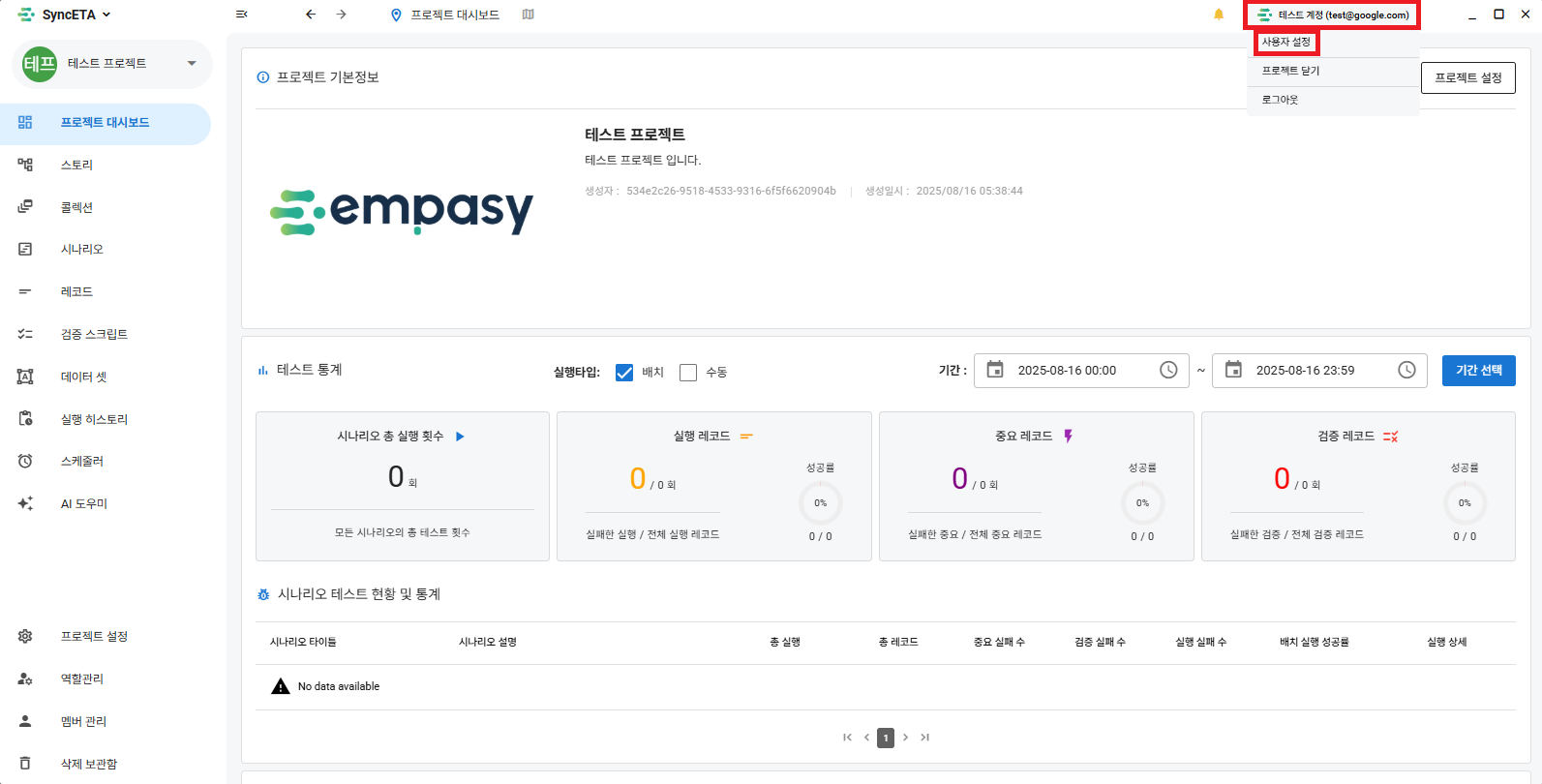
Available Preference Settings
- Profile Information: Update your display name and avatar image
- Language Settings: Switch the interface between Korean, English, and Japanese
- Theme Mode: Toggle between Light Mode and Dark Mode
- Security Settings: Change your password
- Notification Settings: Enable or disable email and webhook notifications for test failures and scheduled execution results